The days of small, square CRT monitors are over. Bigger, wider, and higher-resolution monitors now dominate the market. But how does one properly make use of all of this extra space? I run into a good deal of people who simply don't understand how to take advantage of this extra room, and hopefully this article will teach you how.
Bigger Is Better? Usually.
"Resolution" means the number of pixels on a monitor. (I assume you know what a pixel is.) If you have a 19" or larger widescreen monitor, it's probably sporting a resolution of at least 1440x900 pixels, if not 1680x1050 or 1920x1080 (to name a few).
This is considerably bigger than the 1024x768 screens of a decade ago. How much bigger? If you calculate the difference in pixel count from a typical 1024x768-pixel monitor to a modern 1680x1050-pixel monitor, you get:
(1680 * 1050) / (1024 * 768) = 2.2431...
The 1680x1050 monitor has over twice as much screen room as the smaller one! And if you have a 30-inch 2560x1600-pixel monitor, it has 5 times as much screen area as its 1024x768 counterpart of 10 years ago. Too bad most people don't know how to make full use of it all. I even know several people who complain about their new monitors being "too big"!
Full-screen or Windowed?
Those migrating from smaller monitors to larger ones – myself included! – make the simple mistake of continuing to run everything maximized (filling up the entire screen). While we more or less had to do this on smaller screens, there is really no reason to run your web browser maximized on a 22" screen.
Simply put: larger monitors are designed to be used with windows. You're supposed to put two, or three, or four, windows on the same screen for increased productivity. Open up your web browser on one side of the screen, open 2 chat windows and your media player on the other. Instead of switching between windows using the taskbar (or dock, on a Mac), you can simply have everything in front of you.
If you run your browser fullscreen on such a large monitor, you'll no doubt notice one of two things:
- There's a ton of wasted space along the edges of the screen, and the main content area seems ridiculously small in proportion.
- The text stretches all the way across the screen, requiring you to repeatedly move your eyes back and forth and double-check to make sure you don't lose your place. There's a reason that books were made to be a certain width.
Running the browser in a window big enough to fit the website, but not too big as to cause the above problems, alleviates these issues.
When should I use fullscreen or maximized programs though?
The "maximize" button isn't going anywhere soon though. Why not? Because some programs genuinely benefit from running in full screen. While a web browser and word processor should usually be run in a window, something like Microsoft Visual Studio or Adobe Premiere runs better in full screen (at least on "medium large" as opposed to "ridiculously large" monitors). This is because of the sheer amount of toolbars, tool windows, tracks, controls, and sections of the window that can be found in such programs. Notice, in the below screenshot, how much actual "usable area" there is in Firefox versus Visual Studio.

Note that the "work area" of both Visual Studio (left, running fullscreen) and Firefox (right, running windowed) is equal, as indicated by the shaded portion.
What if I don't like to do things the way you describe?
It's your monitor, and thus your choice. But believe me, I went through the same dilemma back in my day, and in the end, I'm glad that I put things in windows now. It doesn't hurt to try something new, does it?
Dual (or Triple, or Quad...) Monitors
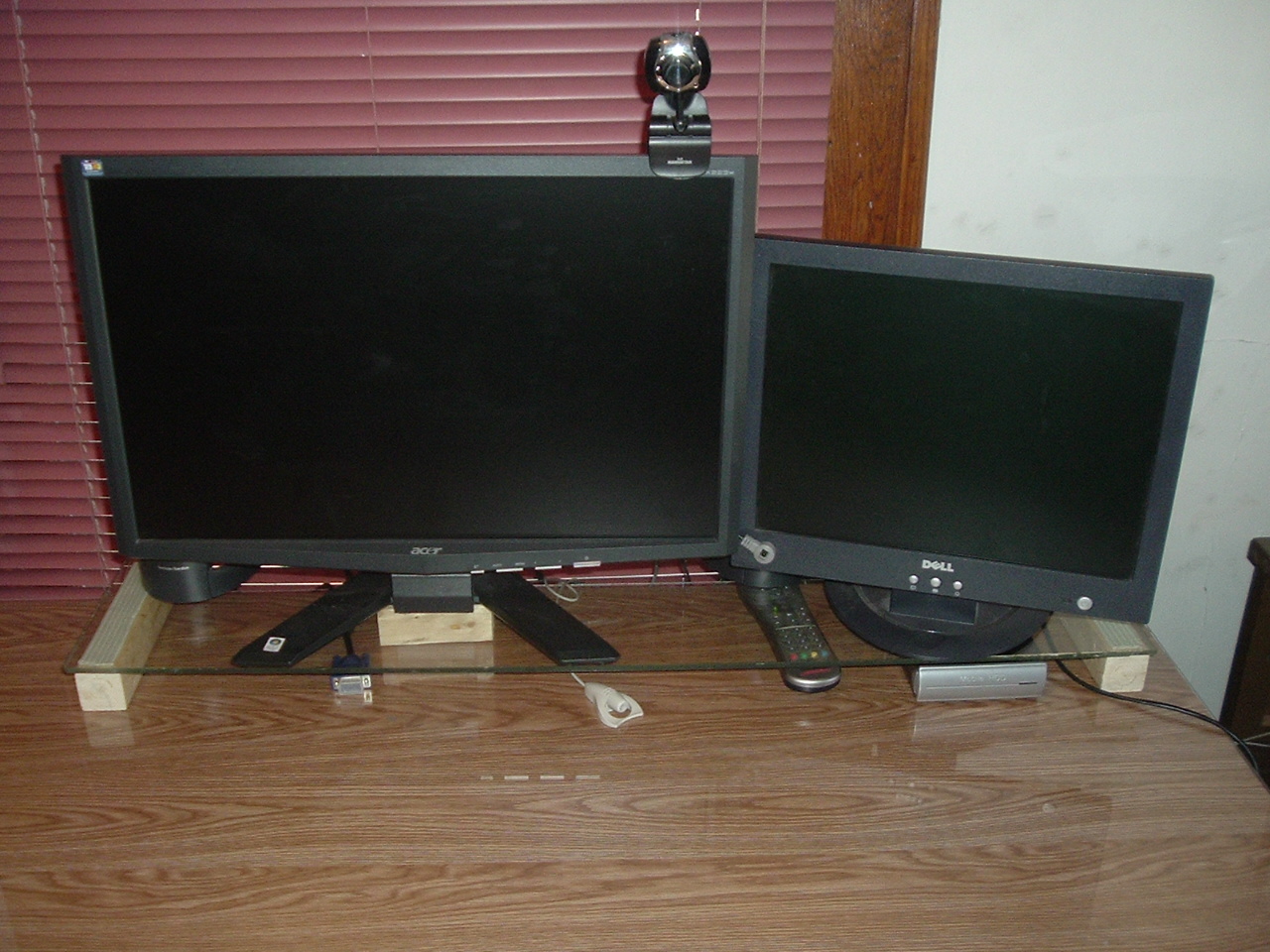
Once you've mastered window management, and now that you've seen the productivity wonders that a larger screen can bring, it's time to move on. Why stick with one screen when you can have two, three, four, six, nine (!!!) screens? Buying a second monitor (or even using your old one in conjunction with the new one) will make quite a difference... unless, of course, you're the type who only runs one program at a time.
Native Resolution: Why Is My Monitor Blurry?
It's important to run your monitor at its native resolution. A higher resolution provides better image quality and lets you fit more items on the screen. However, a side effect of this is that everything appears smaller and sometimes hard to read. Every LCD monitor has a fixed number of pixels on the screen, and while it's tempting to crank down the resolution to make everything bigger, don't do this.
Why not? Since the number of pixels on the physical screen is different from the number of pixels in the input signal coming from the computer, the monitor must "guess" at some of the colors (this is known as interpolation), which results in blur. When you run at the native resolution, the physical pixels on screen and the pixels in the input signal from the computer match up exactly, resulting in a perfectly sharp image the way the manufacturer intended.
Aspect Ratio: Don't Squash Everything!
Modern monitors come in one of two "widescreen" aspect ratios: 16:10 and 16:9. (Older "square" monitors usually made use of a 4:3 aspect ratio.) Note that the bigger the resulting fraction is, the "wider" the screen becomes.
It surprises – and amuses me to no end – when I see a large 22" monitor not only running at a sub-optimal resolution, but running at a non-widescreen one at that. This produces a blurry and squashed (or stretched) image, and while you "get used to it" to some extent after staring at it for hours, it's still quite disconcerting when your slightly-overweight full-body picture appears to have gained 30 pounds.
![[XML]](/images/xml.png)
Comments (33)
Large black margin are unused on both sides of the screen.
How can I fix that?
Thank you, Gilles
I basically meant that if you get a large monitor, you shouldn't make your browser window big and then complain about all of the wasted space around the edges. If you're zooming in, or if you're able to comfortably read long sentences that span across the width of the monitor, there is absolutely nothing wrong with doing that.
The aspect ratio problem is even bigger on TVs, where people tend to watch 4:3 programs on 16:9 TVs, and everything is squashed...
Almost forgot same screen to :P
As far as blurry "streams" are concerned... if you mean blurry lines, try adjusting your clock and phase settings on the monitor. (It can also be named "fine-tune"; this is NOT the same as setting the time!) Or just use the "auto adjust" feature if it's there.
Monitor= Handic 22inch
In dark areas i get this weavs on the monitor but its kinda crispy clear in areas with loads of brightness whats the prob is it my computer is it something thats done wrong or is it just nothing i can do about it ?
http://eu.battle.net/wow/en/
running at 1440 x 1050 atm.
Can you post the make and model of your monitor? I can look up the exact specs.
If 1600x1200 isn't an option in your control panel but you're certain that it supports it, try the tricks outlined here: http://nookkin.com/content/allowing-any-screen-resolution-on-vist a.php
I try and stay as close to square as possible - I use AutoCadd and I am afraid to change the ratio.
Does anyone use AutoCadd on a wide screen?
thanks
david a
I tried a wide screen monitor with autocad and circles looked like ellipses so obviously I don't know how to set thr resolution etc.
thanks
david a
thanks
david a
If you run a 1920x1200 monitor at 1600x1200 (i.e. forget to change it), then yes, everything will look blurry and "squished". Circles will look like ovals, skinny people will look fat, and text will be difficult to read. But that's a fault of the configuration, not the hardware.
Read the bits on "Native Resolution" and "Aspect Ratio" in the article for more details.
You can certainly use your 20" monitor with Windows 7 and/or a new computer with no issues, and if it dies on you due to old age, you can find plenty of used ones on eBay if you insist on using a square one. I still encourage you to at least try a widescreen though (or two!), as it will give you so much more work area.
Very helpful info
david a
This is the problem that I have with my 24" widescreen...."everything appears smaller and sometimes hard to read". How do I overcome this and still keep the monitor in its native resolution? I've had my monitor for over a year and still struglle with this. I've tried to force myself to use it in native mode, ut it's just too small. I then tried changing the DPI, but have the non-sharp image issues. It seems like my choices are either having text that is too small to read or blurry from a non-native resolution. What good is it to have a widescreen monitor if things are too small to read?
1) Move the monitor closer to make text easier to read
2) Use the zoom feature of your web browser, word processor, etc.
3) Increase the DPI – images will be blurry but text should be crystal clear. Much better than running non-native and having everything blurry.
4) If you must run non-native, try a resolution exactly half that of the native (so in the case of a 1920x1200 24" monitor, use 960x600). This will ideally "pixel double" the image so that each pixel will map to 4 physical pixels with no blur. You may need to use your graphics card's control panel or a 3rd-party program such as PowerStrip to enable this custom resolution.
5) Consider buying a 27" monitor with 1920x1080 resolution, which will have bigger text. If you want to go really big, get a 1080p HDTV in a larger size (30" or more)
The reason for making things so small is so that you can fit more on the screen; it's very useful for graphic designers and the like where image clarity is more important than comfortable text reading. For what it's worth, I own a 15" laptop with a 1920x1200 monitor and most people can't use it because the text is ridiculously small. (I'm fine with it though.)
James
and if I tried to decrease the resolution to make fonts bigger they will become blurry.
I bought a widescreen larger monitor since I'm now a 55 years old and my vision is not very well as it used to be
It seems that I will put this widescreen thing back in the box
First, calculate your current pixel density by solving the equation DPI = (x*y)/d with x and y being your resolution in pixels and d being 17 inches (your diagonal screen size).
Then, pick one of these resolutions: 1366x768, 1600x900, 1029x1080.
Finally, input these resolutions and the DPI value you calculated above into the following equation: d = (x*y)/DPI with x and y being the new pixel density values. This will give you the size of the screen you should get, for the given resolution, if you want everything to appear the same size as it does today.
A good way to get a low-pixel-density is to buy an HDTV -- a 24" 720p or 36" 1080p unit will give you nice big pixels so you won't get any blur but everything on the screen will be easier to see.
I really appreciate these golden tips that you gave in the last comment. I wish I could be lucky enough to read them before buying my 24" LED monitor
I have solved the equations to get a recommended screen size of 31"
DPI= 1024*768/17 = 46260.705
D= 1600*900/46260.705 = 31.127 ~ (31")
Anyway I will give the current 24" to one of my grandchildren, that lucky brat :D , and go for the option of HDTV 24" 720p if you are sure it will work fine for me.
However I want to ask if I will need a specific graphics unit processor to run the HDTV monitor on a PC.
Thank you.
sqrt(x^2+y+2)Thus the pixel density of your 17" 1024x768 screen is sqrt(1024^2+768^2)/17=75 ppi.
For a target PPI of 75 and a "720p" (1366x768) screen, you want a diagonal size of sqrt(1366^2+768^2)/75 = 20". On a 24" 720p screen, everything will be BIGGER than what you currently have. If you go with 1600x900, the necessary size becomes (1600^2+900^2)/75 = 24". And if you go with 1920x1080, it becomes ~30". Please note the native resolution of the TV when purchasing, not just the "supported" resolution, since running at non-native will cancel out any benefit of finding a lower-resolution screen anyway. I have yet to see a native 1600x900 TV but they do exist for all I know.
As for hooking it up to a computer, pretty much every computer has an HDMI or DVI port. DVI can be converted to HDMI with a $3 mechanical adapter. Some TVs even have VGA ports that every computer made within the past 20 years has. If you don't have the right ports, you can buy a cheap video card for around $20 on eBay that will.
Leave a comment